
In order to support some use cases we have decided to share our experience working with a Raspberry Pi, a Pi Hat and also a Display.

Hardware used
-Raspberry Pi 3 - Model B+ - 1.4GHz Cortex-A53 with 1GB RAM
-PiTFT Plus Assembled 320x240 2.8" TFT + Resistive Touchscreen
-GPIO Ribbon Cable for Raspberry Pi Model A+/B+/Pi 2/Pi 3 - (40 pins)
-Break-away 0.1" 2x20-pin Strip Dual Male Header
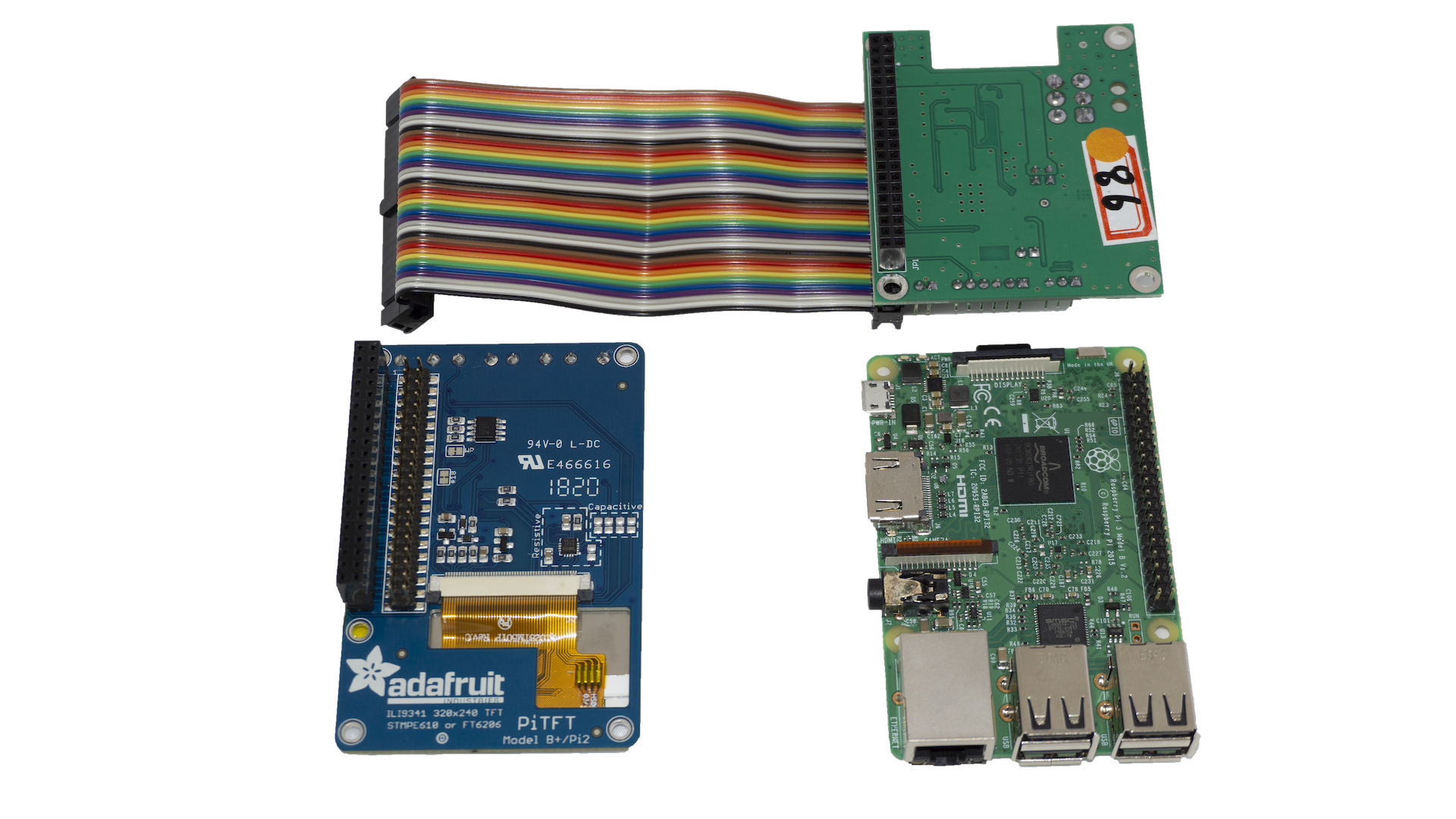
Guide
First of all you need to assemble all the hardware above mentioned. For that I suggest starting by assembling the GPIO Ribbon Cable into the
8 PITFT male connector. Make sure pin1 from the PITFT match with pin1 from the Ribbon Cable (usually identified with an arrow).
After that, assemble the male pin header 2x20 into the other female connector left from the ribbon cable.
Then you'll need some soldering skills to solder it into the Pi Hat from the top. Again, make sure the pin 1 and 2 (brown & red cables) from the ribbon cable match the pin1 and 2 of the Pi Hat .
Now you only need to connect the 2.8 PiTFT Hat into the Raspberry Pi and plug the power.
Prepare you Raspberry Pi to work with our Pi Hat (see Software)
To setup your PiTFT check here.
If you are unsuccessful, try the steps below...
Before you try again, we need to disable the SPI to avoid conflicts with Display SPI:
Power off your device;
Remove the TFT display and let only the pi hat connected to the Raspberry Pi;
Power up the device;
Run terminal and consequently a console, typically:
sudo minicom -b 115200 -D /dev/ttyAMA0and press CRTL+A then Z, and press E in order to be possible see what you're writing;Send the command
V+ CR (carriage return = Enter). Make sure that command is a capital "V" not "v". Then you should see the response of the MDB Pi Hat. You should see at least V4.0.2.0 (firmware version);Disable SPI, send
F,SPI,0if you need to enable it again useF,SPI,1;Connect the Display again and reboot the entire system;
Now should work properly.
If not contact us at tech@qiba.pt - we'll answer you!