In this section we will cover all major MDB Toolchest Functionalities and how to use the software!
Main Window:
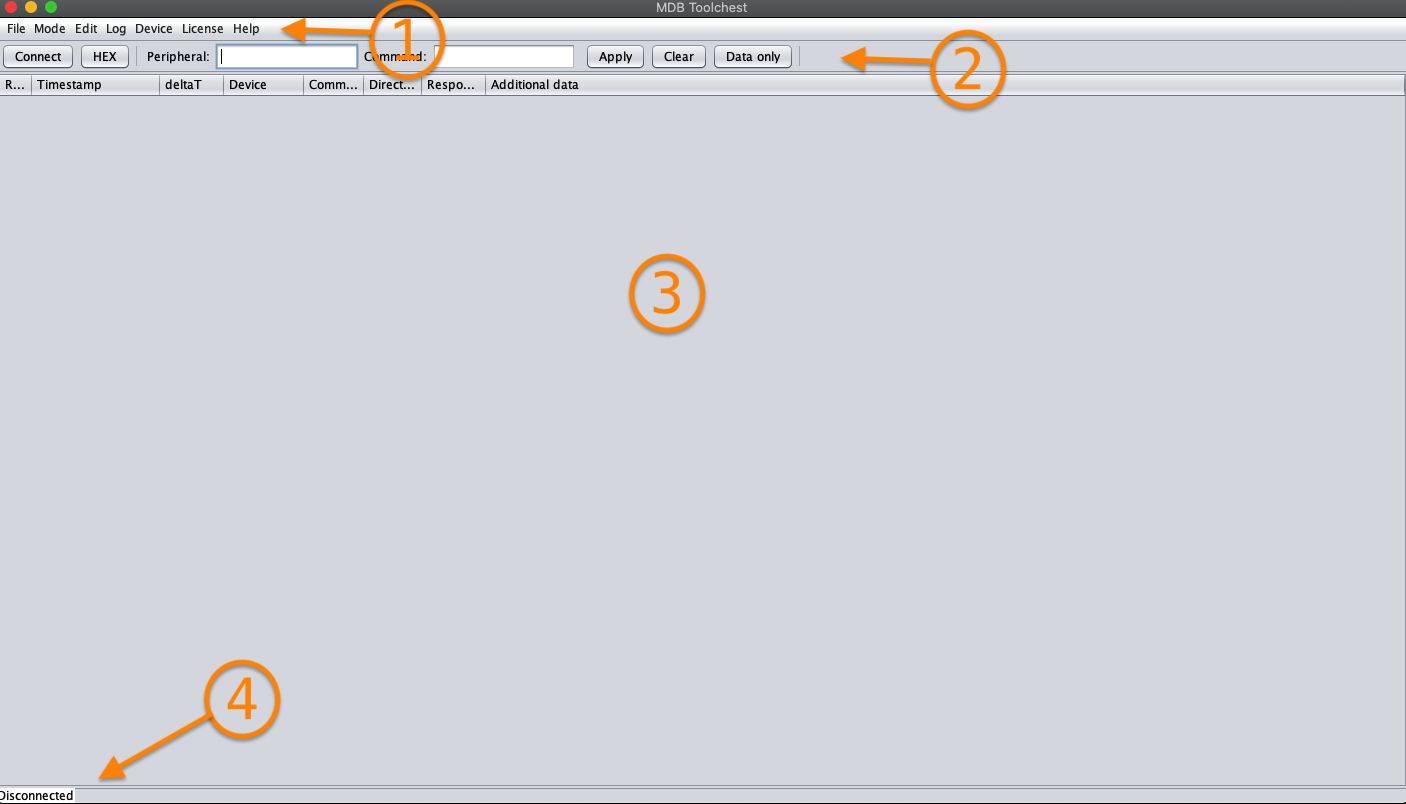
The Main Window is composed of 4 key areas:
Menu - This is where all features can be accessed by further navigating
Toolbar - Dynamic Toolbar where you can connect to your Qibixx device, send commands and more
Sniffing Area - When in Sniffing Mode this area will show all available data from the Sniff
Status bar - Shows if there is a connected device, which firmware version is installed in the unit and if the unit is licensed or not!
Menu:
1 - File
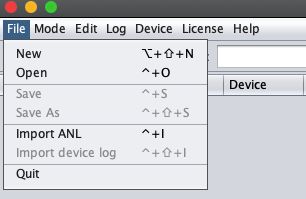
In this sub-menu you can create a new log file, open a local stored one or import different data types. There's also a Quit function that works exactly like the standard red icon depicted in the upper-left corner of the window;
2 - Mode
Choose to run the MDB Toolchest in Sniffer Mode, Remote Sniffer or as a VMC simulator;
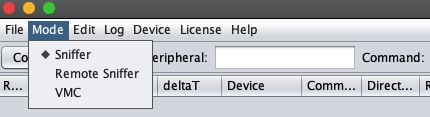
To use as Remote Sniffer, you must also have a Barionet or a Raspberry Pi 3b+
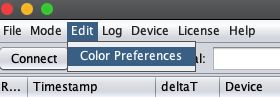
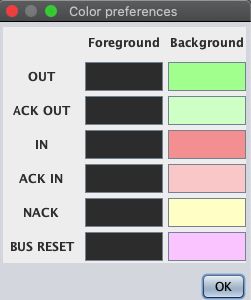
3 - Edit
Edit your color Preferences for the Sniffing Window (3);
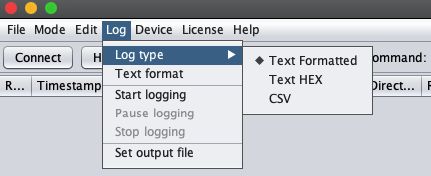
4 - Log
Choose Log type for export, text format; Start, pause or stop logging!
5 - Device
Open the Device Console, activate relays (MDB-USB Interface Plus only) or update your Interface's Firmware!
To perform firmware update via toolchest please follow the instructions here.
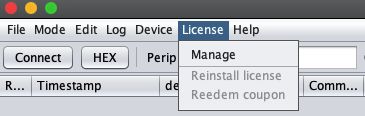
6 - License
License your MDB-USB Interface or manage existing licenses;
To license your MDB-USB please follow the instructions described here.
7 - Help
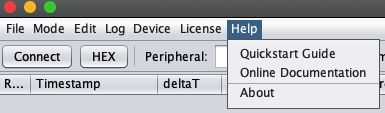
Find support for the MDB Toolchest Software; See the Toolchest's version in the About section, check the Quickstart Guide or get redirected to the Online Documentation Portal